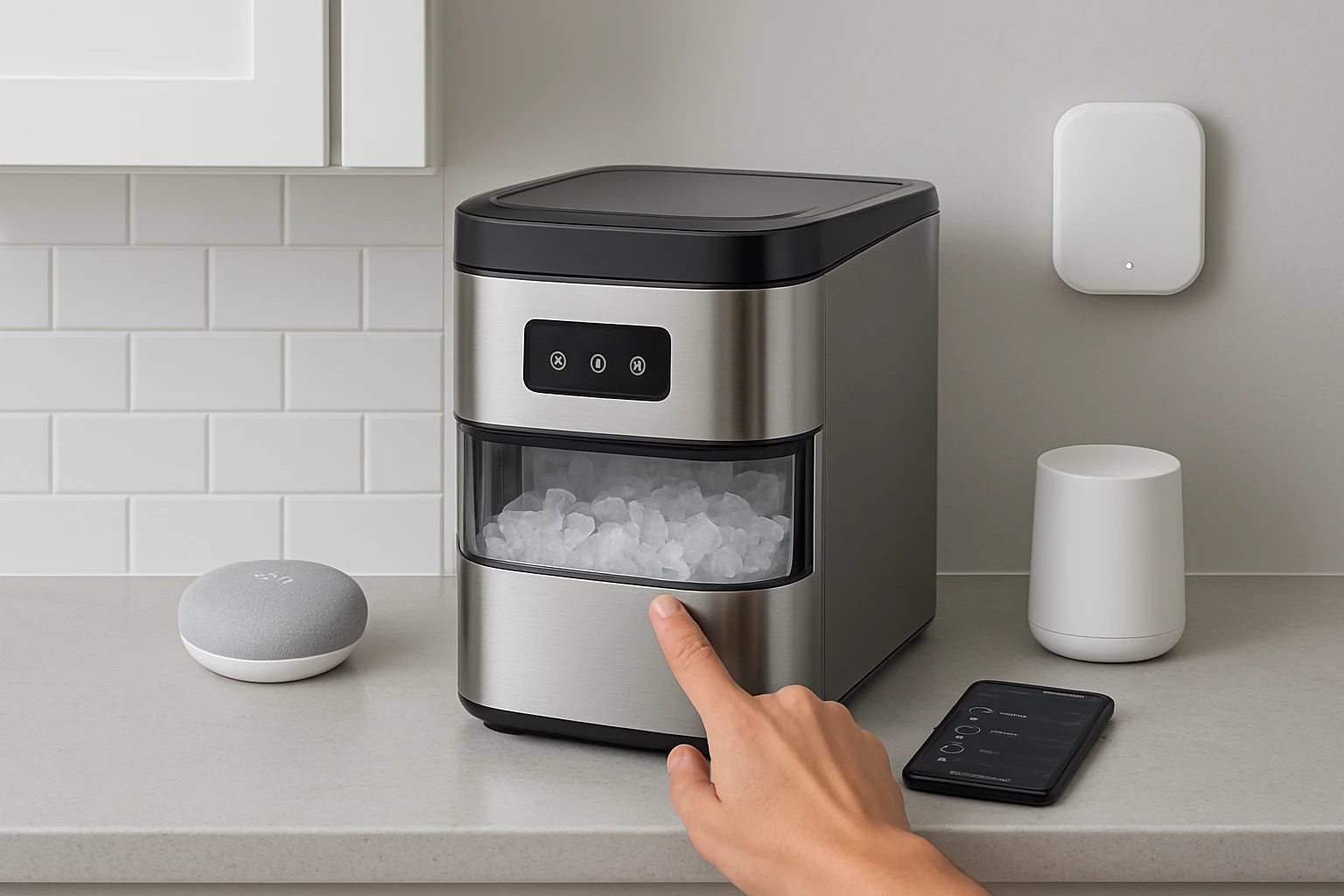
How to Integrate a Countertop Ice Maker into Your Smart Home: Step‑by‑Step Guide for Alexa, Google Home & HomeKit
Introduction
Modern kitchens increasingly rely on smart appliances to streamline entertaining and daily routines. This guide explains how to connect a countertop ice maker to the major voice platforms while maintaining optimal performance and hygiene. Readers will discover the required tools, detailed configuration steps, and best‑practice tips for a reliable smart‑home ice solution. By the end of the article, one will be able to command ice production with a simple voice command or smartphone tap.
What You'll Need
- Any countertop ice maker compatible with Wi‑Fi or Bluetooth (examples are listed below).
- Stable Wi‑Fi network with 2.4 GHz band enabled.
- Smartphone with Alexa, Google Home, or Apple Home app installed.
- Power outlet within reach of the appliance.
- Optional: Smart plug for independent power scheduling.
Step 1 – Choose and Position Your Ice Maker
Select an ice maker that matches the intended usage volume and countertop space. For budget‑conscious households, the Frigidaire Portable Ice Maker provides up to 26 lb of bullet‑shaped ice per day at a price of $92.94, earning a 4.3‑star rating from more than ten thousand reviewers. Its compact stainless‑steel design blends with most décor, and the transparent window allows quick visual checks of ice levels. Position the unit on a flat, heat‑resistant surface at least six inches from the wall to ensure adequate ventilation.
If higher daily output is required for large gatherings, consider the Silonn Nugget Ice Maker. It produces approximately 40 lb of chewable pebble ice daily, includes a 3 L detachable water tank, and operates at a quiet 40‑50 dB. Although priced at $279.98, its larger capacity and soft‑chew texture justify the investment for frequent entertainers.
Step 2 – Power Connection and Initial Setup
Plug the ice maker into a dedicated outlet to avoid voltage fluctuations caused by high‑draw appliances. For models lacking built‑in Wi‑Fi, a smart plug such as those compatible with Alexa or Google Home can provide remote power control. After powering on, fill the water reservoir according to the manufacturer's guidelines; the Frigidaire unit holds 2.1 qt., while the Silonn model uses a removable 3 L tank that simplifies refilling and cleaning.
Allow the machine to run its first cycle uninterrupted. This initial run calibrates the internal temperature sensors and establishes a baseline ice production rate. During this period, verify that the ice tray clears without obstruction and that the unit does not emit excessive vibration, which could indicate an uneven surface.
Step 3 – Connect to Wi‑Fi and Enable Smart Features
Most contemporary ice makers feature a built‑in Wi‑Fi module accessible via a companion app. The GoveeLife Smart Nugget Ice Maker Pro excels in this area with its AI NoiseGuard technology, dual‑tank system, and a dedicated mobile app for remote scheduling. Priced at $499.99 and rated 4.4 stars, it offers 6‑minute rapid ice production and ultra‑quiet 40 dB operation.
To connect, download the GoveeLife app, create an account, and follow the on‑screen prompts to add the device. Select the home Wi‑Fi network, enter the password, and wait for the green confirmation. Once linked, enable the “Smart Home” toggle to expose the device to Alexa, Google Home, and Apple HomeKit through the respective cloud services.
For the Frigidaire and Silonn models, which rely on simpler Bluetooth or basic Wi‑Fi, the Ecozy app provides a unified interface. The ecozy Nugget Ice Maker includes an IceLumix full‑color panel and supports Alexa and Google Assistant via the EcozyHome app. After pairing, the app automatically registers the device with the chosen voice assistants.
Step 4 – Integrate with Alexa, Google Home & HomeKit
Open the Alexa app, tap “Devices,” then “Add Device.” Choose “Other” and select “Discover Devices.” Alexa will locate any compatible ice maker that has been granted cloud access. Once discovered, rename the device to something intuitive such as “Kitchen Ice Maker.” You can now issue commands like “Alexa, start ice” or “Alexa, stop ice.”
In Google Home, press the “+” button, select “Set up device,” then “Works with Google.” Search for the manufacturer (e.g., GoveeLife) and sign in with the same credentials used in the mobile app. After linking, the ice maker appears as a controllable entity. Voice commands such as “Hey Google, make ice” will trigger the first production cycle.
Apple HomeKit integration requires the device to support HomeKit natively or through a bridge. The GoveeLife Pro includes HomeKit support; open the Home app, tap “Add Accessory,” and scan the QR code found in the device settings. After adding, you can create automations like “Turn on ice maker at 5 PM on weekends.”
Step 5 – Optimize Usage and Scheduling
Leverage the scheduling features of each app to align ice production with peak demand periods. For example, set the GoveeLife Pro to begin a cycle 15 minutes before a scheduled party, ensuring a fresh supply of chewable ice without manual intervention. The ecozy model’s LED basket light and real‑time TDS display help monitor ice quality, reducing the risk of cloudy or off‑taste ice.
Consider using a smart plug with energy‑monitoring capabilities for models without native scheduling. This allows you to turn the appliance off during extended absences, conserving electricity and extending the lifespan of internal components.
When hosting, place a glass of water near the ice maker to capture any condensation, preventing slip hazards on the countertop. Regularly empty the drip tray to avoid mold growth, especially in humid environments.
Step 6 – Routine Maintenance and Cleaning
All recommended models include self‑cleaning cycles that should be activated weekly. The GoveeLife Pro offers a 10‑minute quick clean and a 30‑minute deep descale mode; simply add the recommended descaling solution (search Amazon for “B0G1MN3B7N”) and start the cycle from the app. The Silonn Nugget Ice Maker also features an automatic cleaning function that runs after each production cycle, minimizing manual effort.
For the Frigidaire Portable Ice Maker, remove the water tank, rinse with warm soapy water, and wipe the interior with a soft cloth. The drain plug simplifies water removal, preventing mineral buildup that could impair ice clarity.
Inspect the ice basket and water inlet filter monthly. Replace filters according to the manufacturer’s schedule to maintain optimal water purity and prevent unpleasant flavors.
Tips & Pro Tips
- Use filtered or reverse‑osmosis water to extend the time between descaling cycles and improve ice clarity.
- Place the ice maker near a power outlet but away from direct sunlight to avoid unnecessary heating of the water reservoir.
- Enable push notifications in the companion app to receive alerts when the water tank is low or when cleaning is required.
- Group the ice maker with other kitchen appliances in a single Alexa or Google Home routine for coordinated operation (e.g., “Good morning” routine that starts coffee and ice simultaneously).
Troubleshooting
No Wi‑Fi Connection: Verify that the router is broadcasting on the 2.4 GHz band, as many appliances do not support 5 GHz. Restart both the router and the ice maker, then attempt reconnection.
Ice Production Stalls: Check that the water tank is filled to the indicated level and that the inlet filter is not clogged. If the problem persists, run a self‑clean cycle to clear any internal blockage.
Voice Command Not Recognized: Ensure the device name in the voice assistant matches the name used in the app. Re‑sync the device by disabling and re‑enabling the skill or integration.
Conclusion
Integrating a countertop ice maker into a smart home enhances convenience, improves hospitality, and reduces manual effort. By following the six steps outlined above, one can select the appropriate appliance, connect it securely to Wi‑Fi, and command it via Alexa, Google Home, or HomeKit. Ongoing maintenance and strategic scheduling ensure reliable performance for years to come.
Whether one chooses the affordable Frigidaire Portable Ice Maker for modest needs or the premium GoveeLife Smart Nugget Ice Maker Pro for advanced automation, the principles remain consistent: proper placement, secure network connection, and regular cleaning. Embrace these practices to enjoy a steady supply of perfectly formed ice at the sound of a voice command.
Products Mentioned in This Guide
Frequently Asked Questions
What type of network is required to connect a countertop ice maker to Alexa, Google Home, or HomeKit?
A stable 2.4 GHz Wi‑Fi network is required; the 5 GHz band is not supported by most appliance modules.
Can I use a Bluetooth‑only ice maker with my smart home system?
Only if the manufacturer provides a cloud bridge or compatible app; otherwise Wi‑Fi is needed for direct voice‑assistant integration.
Do I need a smart plug to control my ice maker with voice commands?
A smart plug is optional for power scheduling, but voice control works directly through the appliance’s built‑in Wi‑Fi module.
How do I add the ice maker to the Apple Home app?
Open the Home app, tap “Add Accessory,” scan the QR code or enter the setup code from the ice maker’s manual, then assign it to a room.
What are common troubleshooting steps if the ice maker won’t respond to voice commands?
Check Wi‑Fi connectivity, ensure the device firmware is up‑to‑date, re‑authorize the skill or integration, and restart the appliance.